
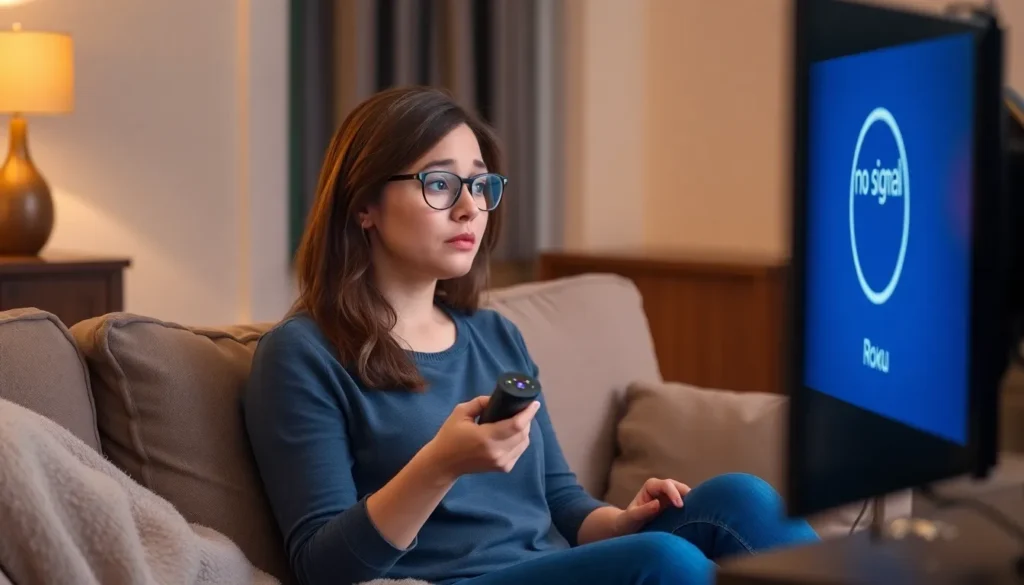
Picture this: you’re all set for a cozy movie night, popcorn in hand, only to find your Roku acting like a rebellious teenager. It’s frustrating when that little streaming device decides to play hard to get. Whether it’s frozen screens, connectivity issues, or the dreaded “no signal” message, there’s nothing worse than having your binge-watching plans derailed.
Common Roku Issues
Roku users often face various challenges that disrupt their viewing experience. Several common issues lead to frustrations, including connectivity problems and software glitches.
Connectivity Problems
Wi-Fi interference frequently causes connectivity issues with Roku devices. Users should ensure their router is functioning properly, as a weak signal affects performance. Distance from the router also plays a significant role; bringing the device closer can improve connectivity. Network settings might require adjustments, so checking for multiple devices connected to the network is essential. Restarting the router can resolve many connection problems, allowing the Roku device to reconnect smoothly.
Device Software Issues
Software updates are crucial for optimal performance on Roku devices. Failed or incomplete updates may lead to glitches and error messages. Manuals often provide instructions on how to manually check for updates, ensuring the device runs the latest version. Corrupted installations can result in software issues, so users should consider resetting their devices to factory settings when chronic problems arise. Frequent crashes or slow performance signals the need for attention, especially when other troubleshooting methods prove ineffective.
Troubleshooting Steps
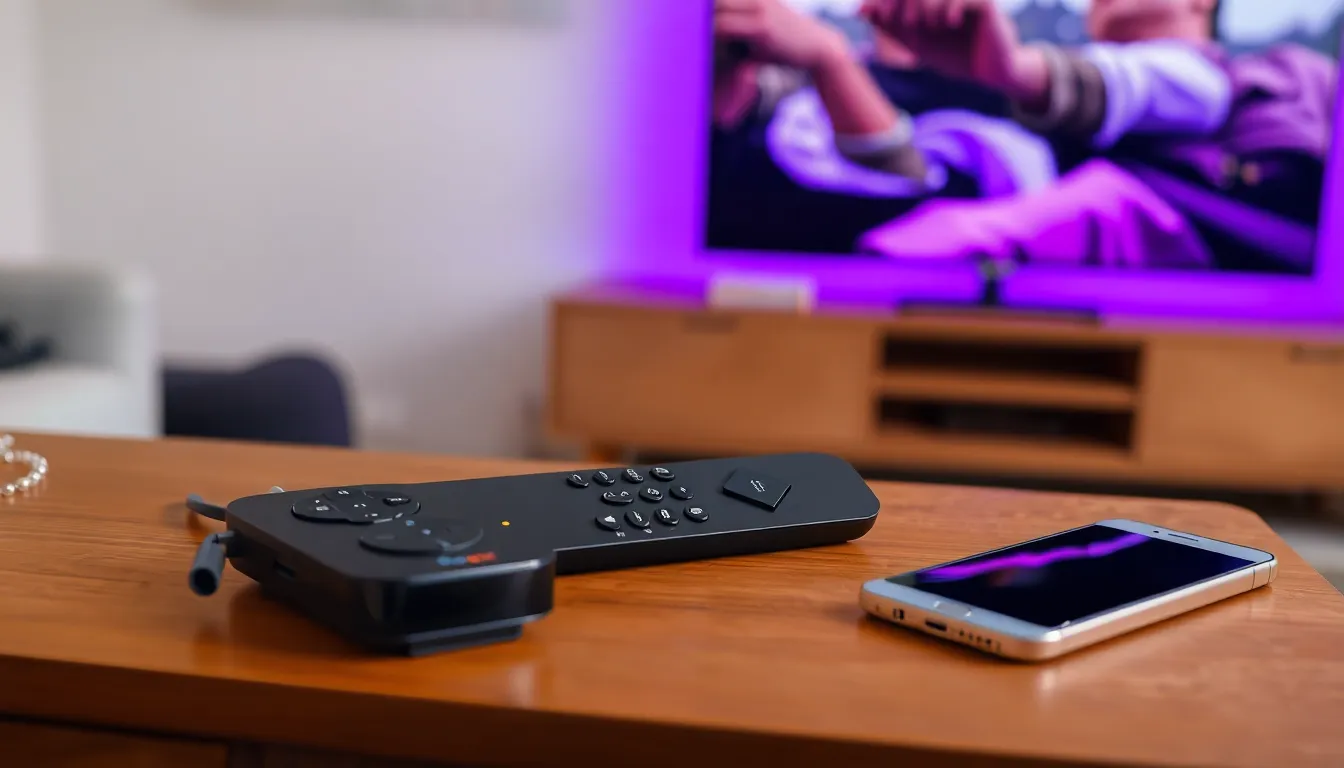
Experiencing issues with a Roku device can be frustrating. Several simple troubleshooting steps can restore functionality.
Restarting Your Roku Device
Restarting a Roku device often resolves minor issues. Users can do this by unplugging the device from power, waiting 10 seconds, and then plugging it back in. This action refreshes the system and clears temporary glitches. It’s also possible to restart through the settings menu by navigating to System and selecting System Restart. Users find this process quick and effective for resolving frozen screens or unresponsive apps.
Checking Your Internet Connection
Checking the internet connection is crucial for proper Roku functionality. Users should confirm if the Wi-Fi network is operational by testing other devices, such as smartphones or laptops. Disconnecting and reconnecting to the Wi-Fi network on Roku can also help. Accessing the network settings shows the connection status, which aids in diagnosing connectivity difficulties. Moving the Roku device closer to the router reduces potential interference and enhances the signal, often resulting in a smoother streaming experience.
Updating Roku Software
Updating Roku software regularly maintains optimal performance. Users can initiate checks for updates by navigating to Settings, then System, and selecting System Update. A notification appears if an update is available, prompting the user to install it. Staying current with software versions prevents glitches and errors during streaming. Ignoring updates can lead to compatibility issues with apps, affecting the overall performance of the Roku device.
Checking Hardware
Checking hardware components is essential when encountering issues with a Roku device. Malfunctions often stem from hardware elements like the remote control or HDMI connections.
Inspecting the Remote Control
Inspecting the remote control may reveal issues impacting its performance. First, ensure the batteries are fresh and properly installed. Replacing old or depleted batteries often restores functionality. Next, check for physical damage, such as cracks or broken buttons. Users should also verify that the remote is paired correctly with the Roku device; if not, re-pairing can resolve connectivity problems. Finally, consider using the Roku mobile app if the remote control seems unresponsive, providing an immediate alternative for navigating the device.
Verifying HDMI Connections
Verifying HDMI connections is crucial for maintaining a stable signal. First, examine the HDMI cable for wear or damage. A defective cable can cause poor connections or no signal errors. Users should securely connect the HDMI cable both to the TV and the Roku device, ensuring it fits snugly. Testing different HDMI ports on the TV can also help identify any defective connections. If issues persist, consider using a different HDMI cable, as this change often rectifies signal problems and enhances overall performance.
When to Contact Support
Contacting Roku support becomes necessary when troubleshooting fails to resolve ongoing issues. Persistent problems such as connectivity failure, repeated crashes, or a consistently unresponsive remote often signal the need for professional assistance. If the troubleshooting steps yield no results, reaching out for help can provide effective solutions.
Further, specific error codes appearing on the screen may demand expert intervention. Errors like 005 or 012 often indicate issues that require technical fixes beyond basic user adjustments. When these codes arise, documenting them can streamline the support process.
Timing also plays a crucial role in seeking support. Attempting to resolve issues during peak streaming hours may lead to frustration. Contacting support during off-peak times can lead to quicker response times and more effective assistance.
Users should not overlook warranty status when determining whether to reach out for help. If a Roku device is still under warranty, the support team might offer a replacement option at no charge. Understand the terms of the warranty to ensure appropriate coverage.
Lastly, if hardware malfunctions occur, such as physical damage to the Roku device or the remote, it’s wise to seek support promptly. These issues require assessment to determine whether repairs or replacements are necessary. Engaging with the support team can facilitate swift resolution and restore smooth streaming experiences.
Experiencing issues with a Roku device can be frustrating but understanding common problems and their solutions is key to restoring functionality. By taking proactive steps like restarting the device checking network connections and ensuring software is up to date users can often resolve issues quickly. If problems persist exploring hardware checks and reaching out to Roku support can provide further assistance. Staying informed and knowing when to seek help can enhance the overall streaming experience ensuring movie nights go off without a hitch.


